Connect ChatGPT
Add DealTraq to ChatGPT as a custom MCP server, sign in, and use it in a chat.
You need a DealTraq account and a ChatGPT plan that allows custom MCP servers. In a ChatGPT workspace, your admin may need to allow them first.
https://api.dealtraq.com/mcp1. Open Plugins
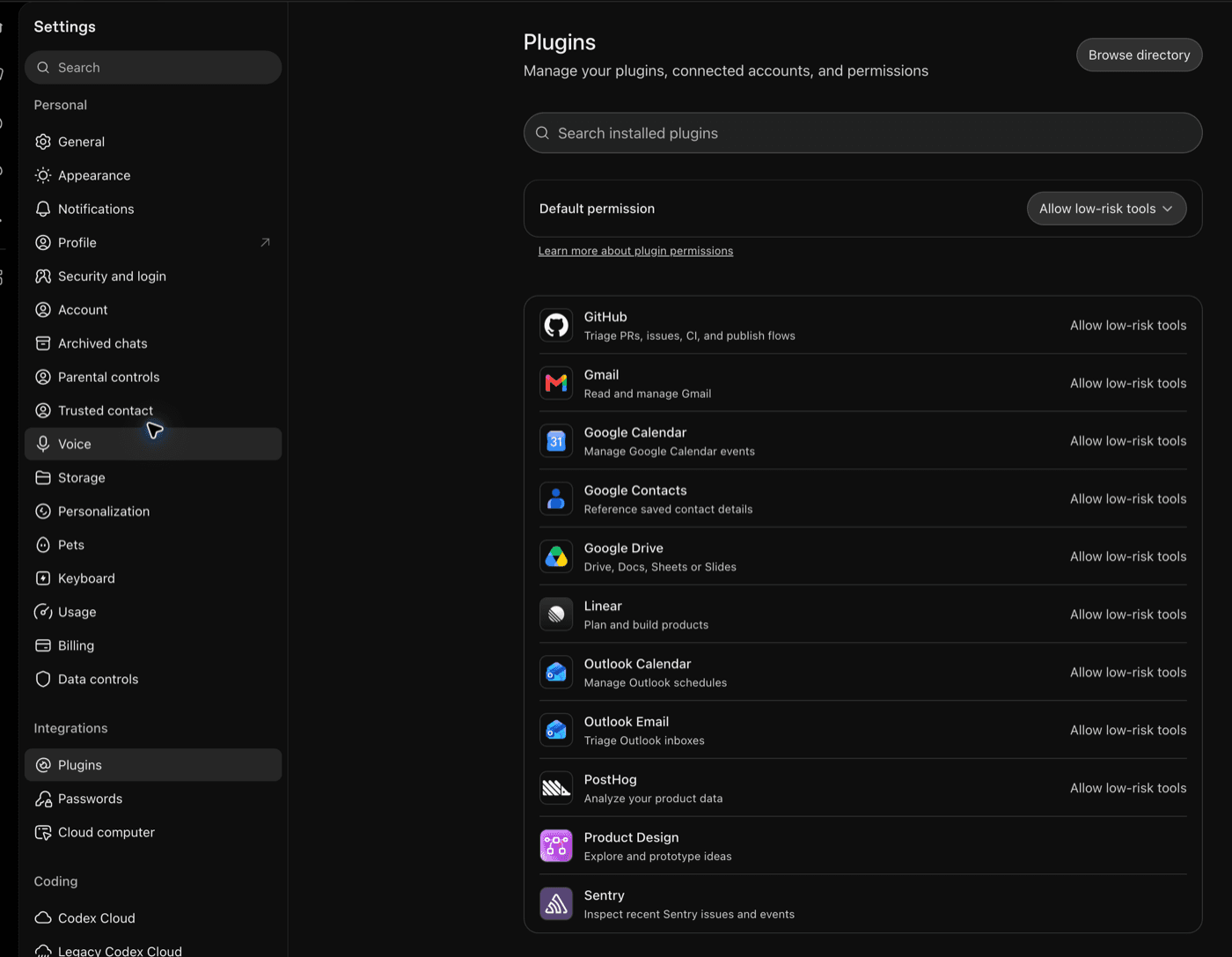
In ChatGPT, open Settings → Plugins, then select Browse directory.
2. Add a custom MCP server
In the plugin directory, select Add, then Add custom MCP server.

3. Enter the DealTraq details
- Name:
DealTraq - Connection: Server URL,
https://api.dealtraq.com/mcp - Authentication:
OAuth
Leave Advanced OAuth settings as they are. Read the risk notice, check I understand and want to continue, then select Create as a plugin.

4. Sign in to DealTraq
ChatGPT opens DealTraq sign-in. Sign in, choose the organization ChatGPT should work in, and approve access. DealTraq then appears in Settings → Plugins, where you can set which of its tools ChatGPT may run without asking.
One organization per connection
ChatGPT only works with the organization you choose here. To switch organizations, remove DealTraq and add it again.
5. Use DealTraq in a chat
Start a new chat and select + in the message box. DealTraq is listed under Plugins; select it to add it to the chat.

Then try a prompt such as:
How many companies are in the active pipeline, and what definition does DealTraq use?
Changes and approvals
ChatGPT can change DealTraq data, for example by creating companies or moving them between stages. DealTraq marks every tool that changes data as not read-only, so under the default Allow low-risk tools permission ChatGPT should ask you before running one. To review a change in DealTraq first, ask ChatGPT to propose it. See the tool reference for what each tool does.
Disconnect
Open Settings → Plugins, select DealTraq, and remove it. ChatGPT loses access to DealTraq on its next request.